Install Process
Last updated: 2026-03-20
Claude Code
- Run the following command in your terminal to register the MantaRisk MCP server:
claude mcp add --scope user --transport http mantarisk https://mcp.mantarisk.com/mcp
The --scope user flag registers the server at the user level, making it available across all your Claude Code projects rather than only the current one. Omitting it defaults to project scope, which limits the server to the directory where the command is run.
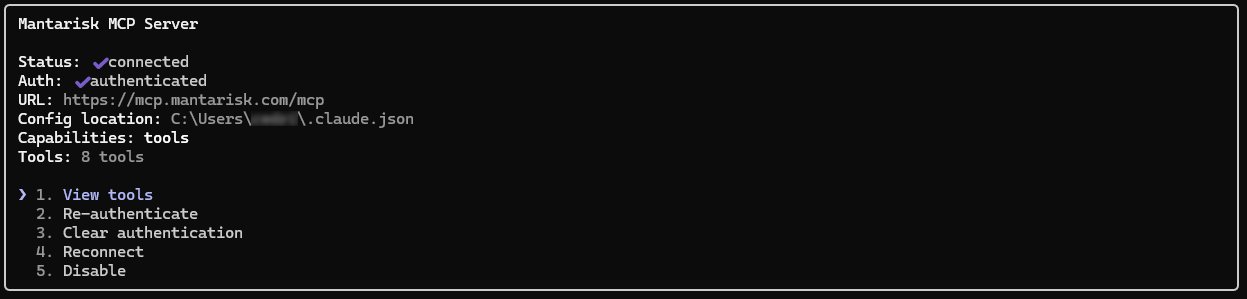
- Start Claude Code, run
/MCP, find the mantarisk entry in the list, and follow the prompts to authenticate.
Claude Desktop
Claude Desktop connects to remote MCP servers through Custom Connectors in the Claude settings.
- Open claude.ai in your browser, click your profile icon, and go to Settings → Connectors.
- Scroll to the bottom and click Add custom connector.
- Enter the MantaRisk MCP server URL:
https://mcp.mantarisk.com/mcp - Click Add and follow the authentication prompts to connect your MantaRisk account.
Once connected, the MantaRisk tools are available in all your Claude Desktop conversations. You can manage tool permissions at any time by returning to Settings → Connectors and clicking on the MantaRisk connector.
ChatGPT
ChatGPT integration is coming soon. The MantaRisk MCP server has been submitted for review by OpenAI and will be available in the ChatGPT plugin directory once approved. We will update this page with full setup instructions at that time.

