Portfolio Modelling
Last updated: 2026-09-28
Once a portfolio is loaded, the same left-side panel lets advisers and portfolio managers model proposed changes before committing to any trade. Adjust a quantity or add a new instrument and MantaWealth immediately recalculates diversification, risk metrics, performance attribution, and rebalancing results across all tabs — supporting better pre-trade decision making and more confident client conversations.
Capital Summary
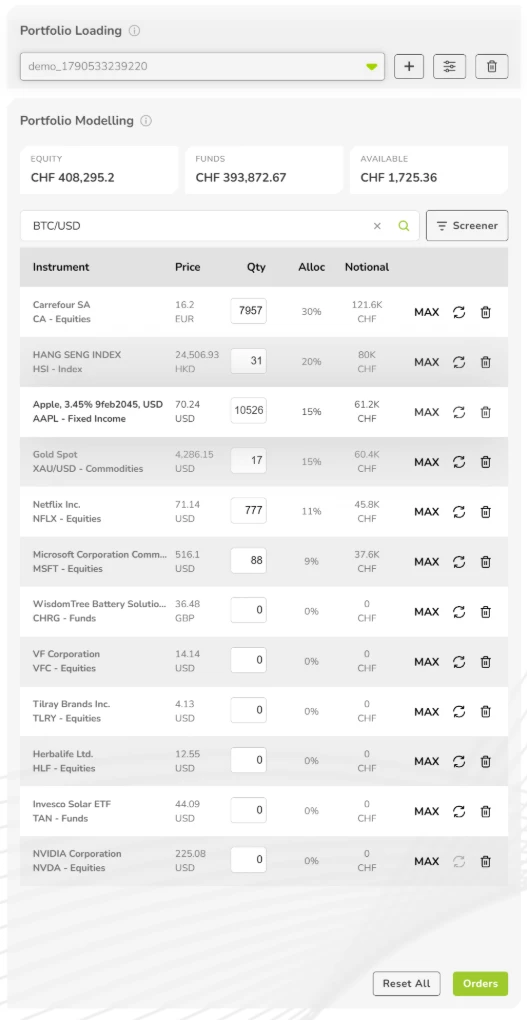
Three headline values show the portfolio's current capital breakdown, in the portfolio's currency. They update live as you model changes:
| Field | Description |
|---|---|
| Equity | Current market value of all held positions |
| Funds | Total capital in the portfolio |
| Available | Uninvested cash available for deployment |
Adding Instruments
There are two ways to add an instrument: search for one you already know, or use the Screener to discover new ones. Either way, the instrument is added to the holdings table immediately and all analytical tabs recalculate.
Instrument Search
Type a ticker, ISIN or instrument name in the search bar and press Enter, or click the magnifying glass. Click a result to add it to the portfolio. The × clears the search.
Instrument Screener
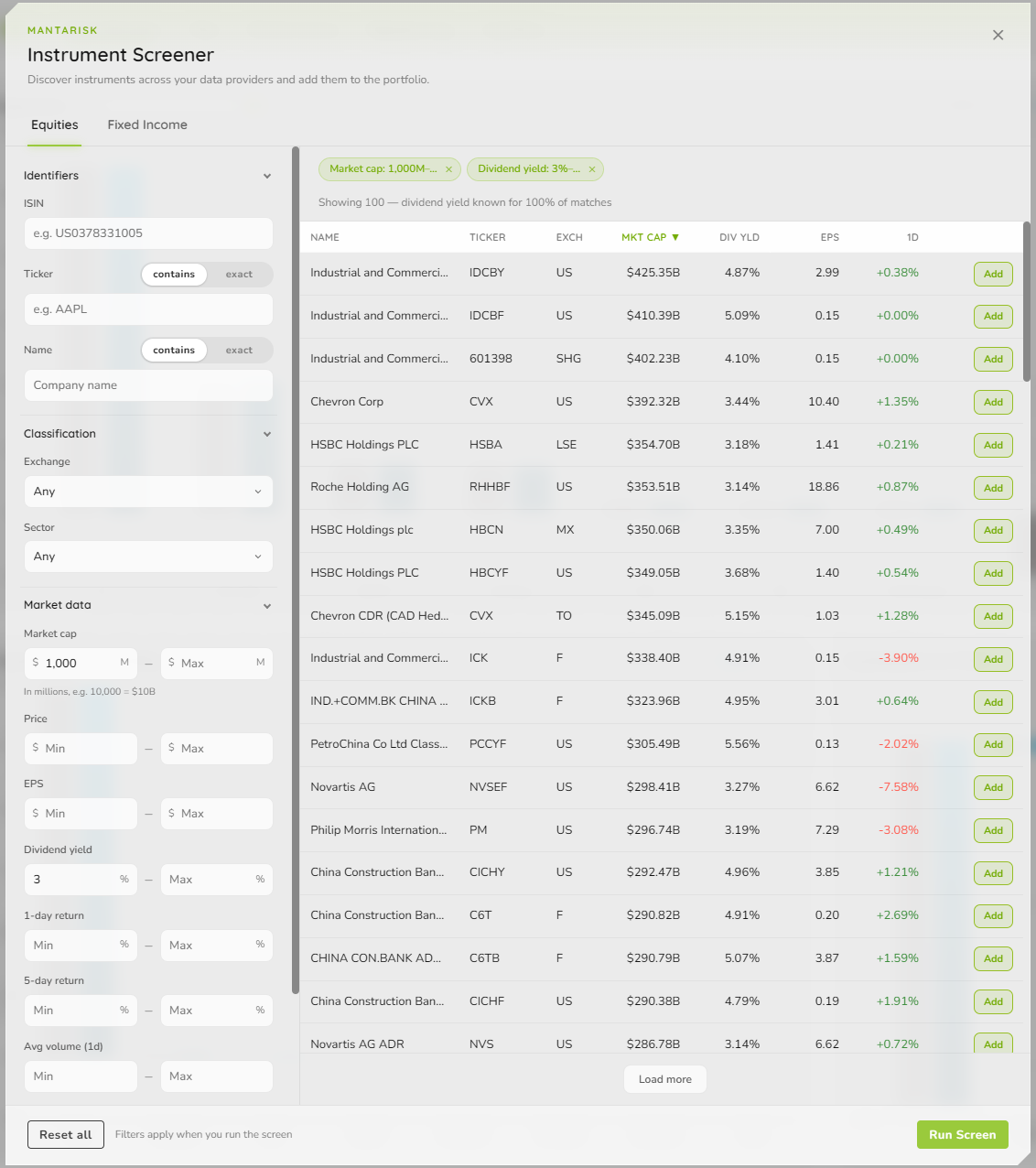
Click Screener, next to the search bar, to open the Instrument Screener. It has two tabs:
- Equities — screen on exchange, sector, market cap, price, EPS, dividend yield, 1- and 5-day return, average volume, and pre-computed signals (new 50/200-day highs and lows, analyst target, book value)
- Fixed Income — screen on issuer sector, geography, country, region, industry, coupon type, currency, face value, yield, duration, coupon rate, outstanding volume and maturity. By default it shows only bonds still available to buy
Results can be sorted on any column, and any match can be added straight into the portfolio; a confirmation appears once it is added. Close the Screener with × or Escape to return to the panel.
Holdings Table
Each row in the holdings table represents one position:
| Column | Description |
|---|---|
| Instrument | Name, ticker, and asset class (e.g. MSFT – Equities) |
| Price | Last traded price in the instrument's native currency |
| Qty | Number of units held |
| Alloc % | Percentage of total portfolio value |
| Notional | Position value converted to the portfolio's currency |
Each row also provides three controls:
- MAX — set this position to the maximum allowed allocation
- Refresh icon — reset the quantity to its original loaded value
- Delete icon — remove the instrument from the modelled portfolio
Reset All and Orders
At the bottom of the panel:
- Reset All — reverts all modelled changes and restores the portfolio to its originally loaded state
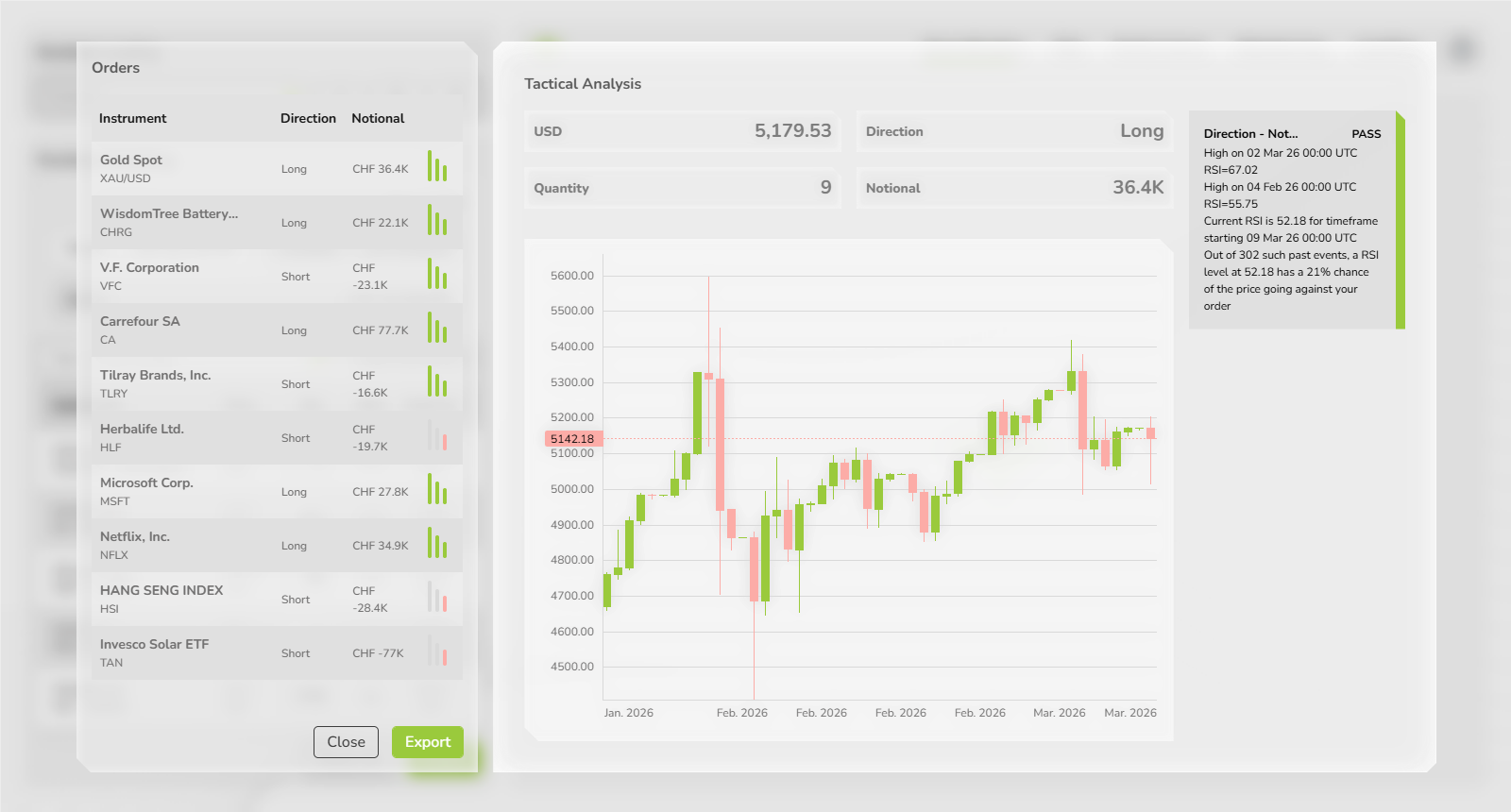
- Orders — opens the Orders panel, which shows the list of buy/sell orders required to transition from the current portfolio to the modelled portfolio