All Portfolios
Last updated: 2026-11-23
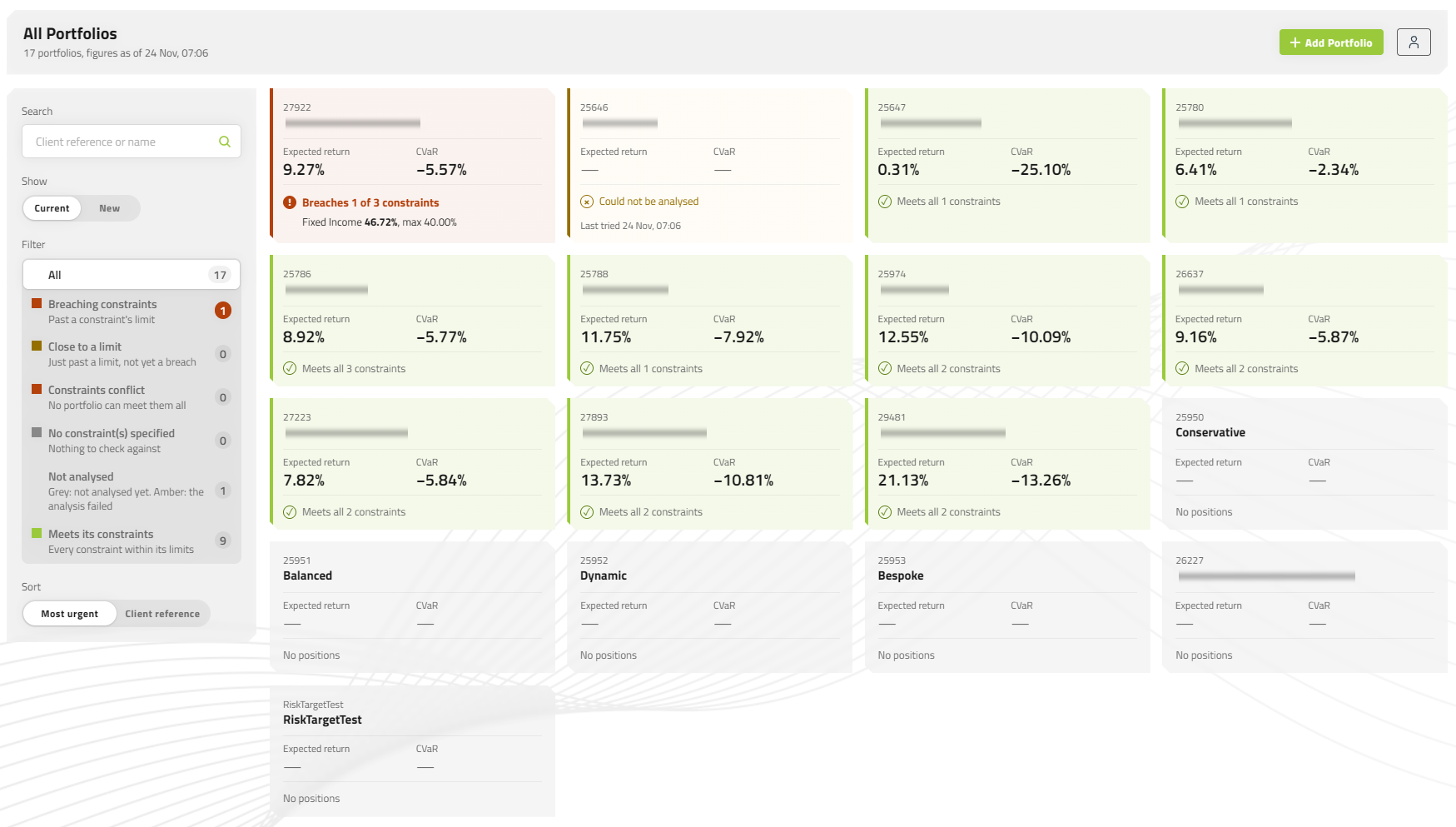
The All Portfolios page shows every portfolio in your account on one screen, so you can see which ones need attention without opening each one. Portfolios that breach their constraints or are close to a limit come first.
Open it from All Portfolios at the start of the portfolio name, at the top of the portfolio panel. MantaWealth also opens on this page when no portfolio has been chosen. Click a tile to open that portfolio.
Tiles
Each portfolio is a tile showing its client reference, its name, its Expected return and its risk (CVaR, the average loss in the worst 5% of cases), and a line on its constraints. The constraints are the ones set on the portfolio's Rebalancing tab, which also explains how close to a limit counts as a warning. The table lists the statuses in Most urgent order.
| Colour | Line on the tile | Meaning |
|---|---|---|
| Red | Breaches 1 of 3 constraints | The portfolio is past at least one constraint's limit. The line below names the worst one, for example Fixed Income 46.72%, max 40.00%. |
| Red | Constraints conflict | The constraints contradict each other, so no portfolio can meet them all. |
| Amber | 1 of 3 constraints close to its limit | The portfolio is just past a limit, but not by enough to count as a breach. |
| Amber | Could not be analysed | The last analysis failed. The tile says when it was last tried. |
| Grey | Not analysed yet | The portfolio has no figures yet. A new or changed portfolio gets them within minutes; any other gets them in the next overnight run. |
| Grey | No constraint(s) specified | The portfolio has no constraints to check against. |
| Green | Meets all 3 constraints | Every constraint is within its limits. |
| None | No positions | The portfolio holds nothing yet. |
While a portfolio is being recalculated after a change, its tile keeps the last figures, greyed out, and shows Updating since with the time.
Current and New
The Show switch chooses which portfolio the tiles describe:
- Current: the portfolio as it is held today.
- New: the proposed, rebalanced portfolio, so you can check a rebalance against its constraints before any order is placed. Under each figure, the tile shows the change from the current portfolio in percentage points. A portfolio with no proposed change keeps its current figures and says No changes proposed.
MantaWealth remembers your choice in this browser.
Search, Filter and Sort
The panel on the left narrows and orders the tiles:
- Search by client reference or name. The tiles filter as you type.
- Filter by status, each filter showing the number of portfolios in it. Not analysed covers both portfolios not analysed yet and those that could not be analysed. On the New side, With a new portfolio shows only the portfolios with a proposed rebalance.
- Sort by Most urgent (the default, in the order of the table above) or Client reference.
When the Figures Are Updated
The figures are recalculated overnight on working days, and again shortly after a portfolio, its positions or its strategy change. The line under the page title gives the time of the last overnight run. Opening this page never starts a new analysis.
Adding, Editing and Deleting Portfolios
- Add Portfolio, at the top right, creates a new portfolio. See Portfolio Loading.
- The settings button and the bin appear when you point at a tile (on a touch screen they are always shown):
- The settings button opens that portfolio's settings, where you can change its available funds or upload positions.
- The bin deletes that portfolio, after you confirm. A deleted portfolio cannot be recovered.
When MantaWealth is opened from within another platform that manages your portfolios, these buttons are not shown.

